The WinForms Diagram is a feature-rich control for visualizing, creating, and editing interactive diagrams. It supports creating flow charts, organizational charts, network diagrams, and more either through code or a visual interface.
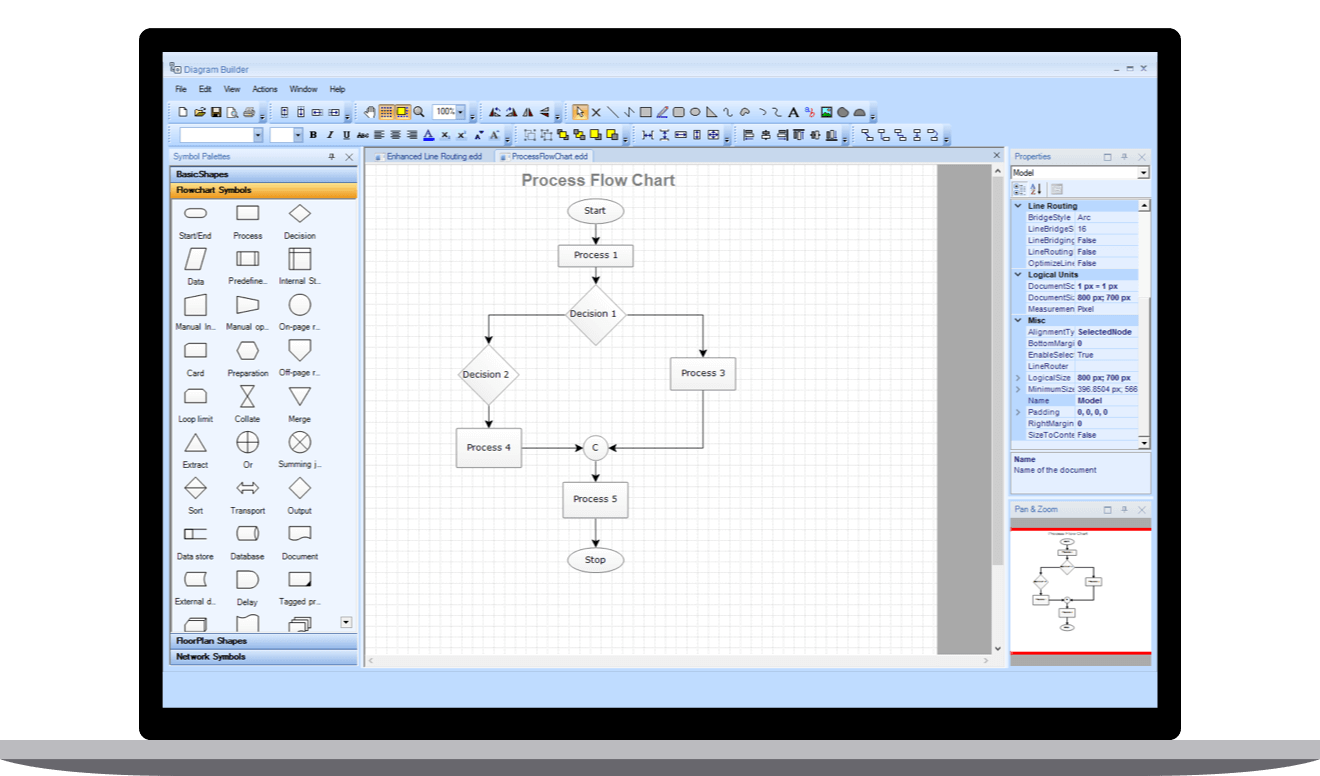
The Windows Forms Diagram library provides all the standard flowchart shapes as ready-made objects to build flowcharts, making it is easy to add them to a diagram surface in a single call.
Built-in automatic layout algorithm specifically made for organizational charts to arrange the parent and child node positions automatically.
Visualize any graphical object using nodes, which can be arranged and manipulated on a diagram page.
- Use many predefined standard shapes.
- Create and add custom shapes easily.
- Fully customize the appearance of a node.
The relationship between two nodes is represented using a connector. Some of the key features are listed.
- Connector Types: There are three types of connectors available in the diagram which are straight, orthogonal, and curved connector.
- Bridging or line jumps: Bridging clearly indicates a connector’s route and makes it easier to read where connectors overlap each other in a dense diagram.
- Arrowheads: Use decorators and arrows to indicate flow direction in flow charts or state diagrams. You can also build your own custom decorator based on the type of diagram.
Interactive features are used to improve the runtime editing experience of a diagram. You can easily edit a diagram with mouse, touchscreen, or keyboard interfaces. Select one or more nodes, connectors, or annotations and edit them using thumbs or handlers.
Populate diagrams with nodes and connectors created and positioned based on data from data source. In addition, data in any format can be easily converted, mapped, and consumed in the diagram by setting a few properties, without having to write any code. The Diagram library also supports loading data from a list or IEnumerable collection.
Automatic layouts are used to arrange nodes automatically based on a predefined layout logic. There is built-in support available for following layouts.
- Hierarchical tree layout
- Organization chart
- Mind map
Includes a gallery of stencils, reusable symbols, and nodes that can be dragged onto the surface of a diagram.
The overview panel is used to improve the navigation experience when exploring large diagrams. It displays a small preview of the full diagram page that allows users to within it.
Save diagram state in JSON format and load it back for further editing using the serializer.
You can easily export the diagrams to different image formats such as PNG, JPEG, BMP, and SVG and also can be printed from the browser.
View a large diagram closely or assume a wider view by zooming in and out. Also, navigate from one region of a diagram to another by panning across the diagram.
Learn More about WinForms Diagram